 Loopwise Labs
Jira Cloud app · Runs on Atlassian
Cascading Select for Jira
Jira's built-in cascading select stops at two levels. This field goes up to six.
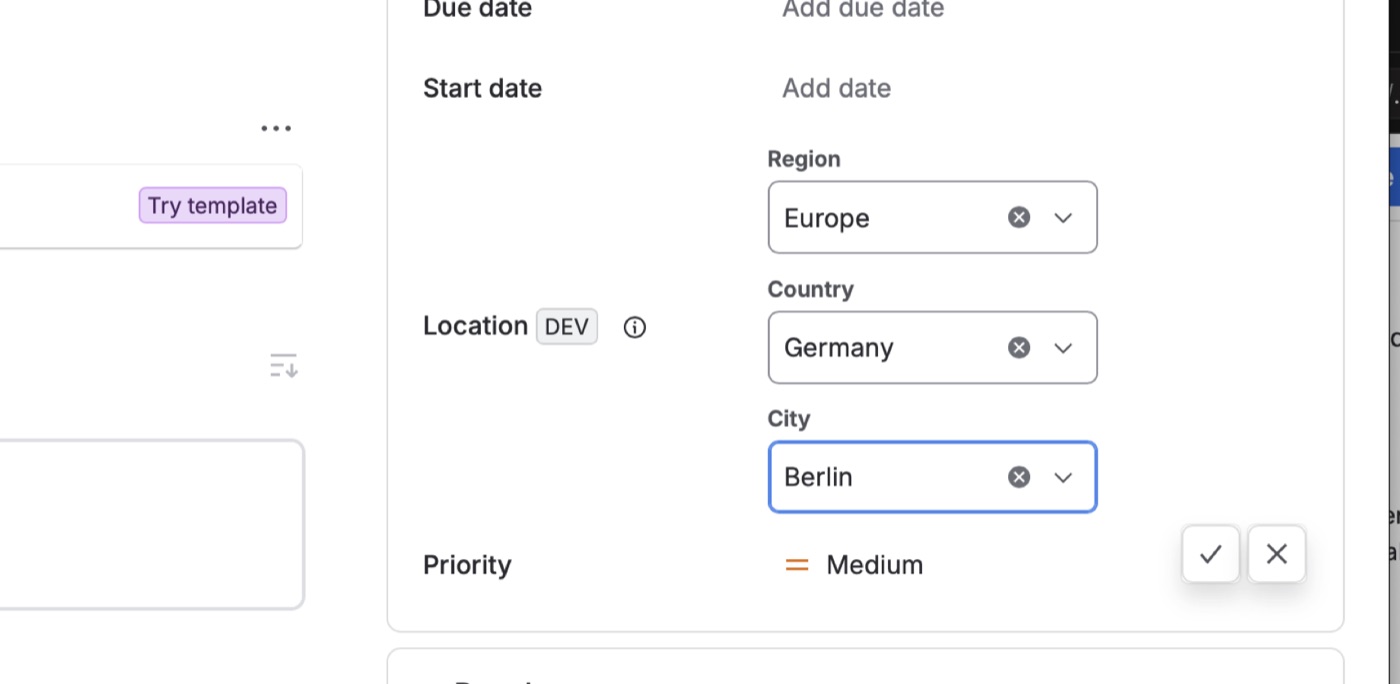
- Up to six dependent levels: each dropdown shows only the options under the one chosen above it, such as Region › Country › City or Product › Component › Area.
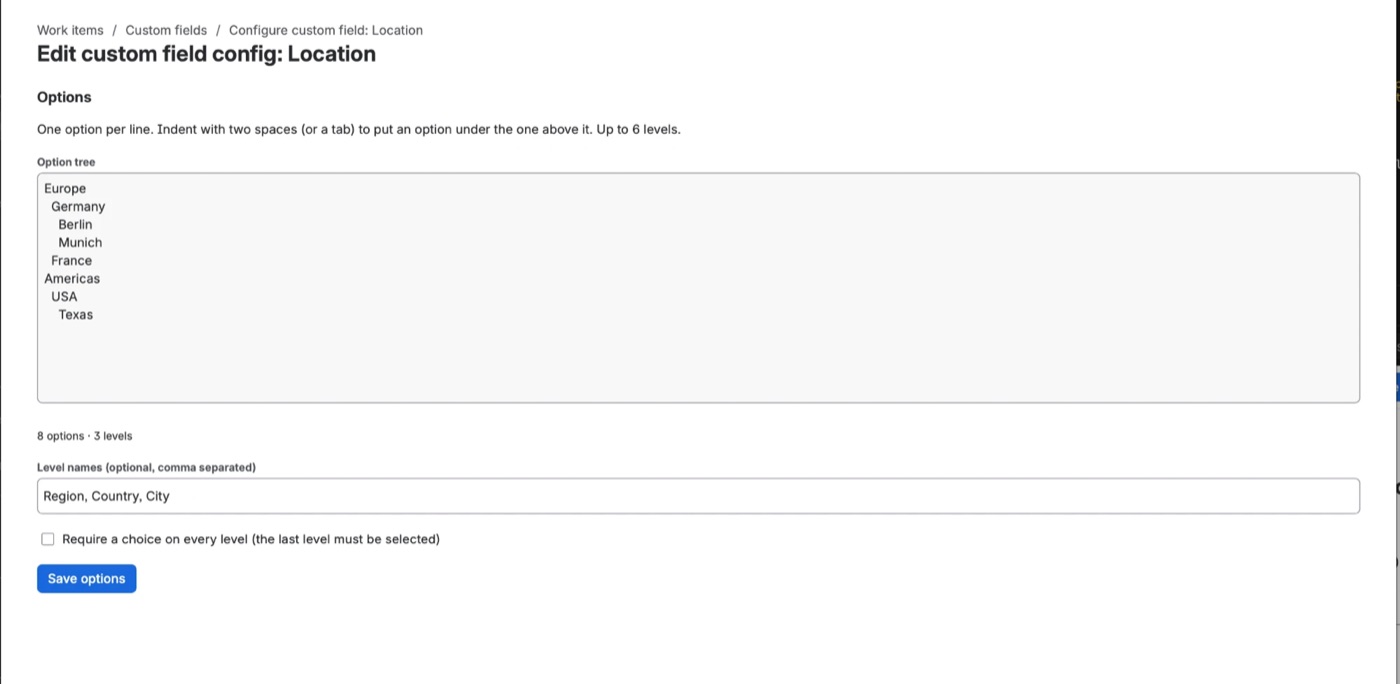
- Set up in seconds: admins paste or type an indented list instead of clicking through option screens.
- Named levels: label each dropdown, for example Region, Country and City.
- Optional full path: require people to choose down to the last level.
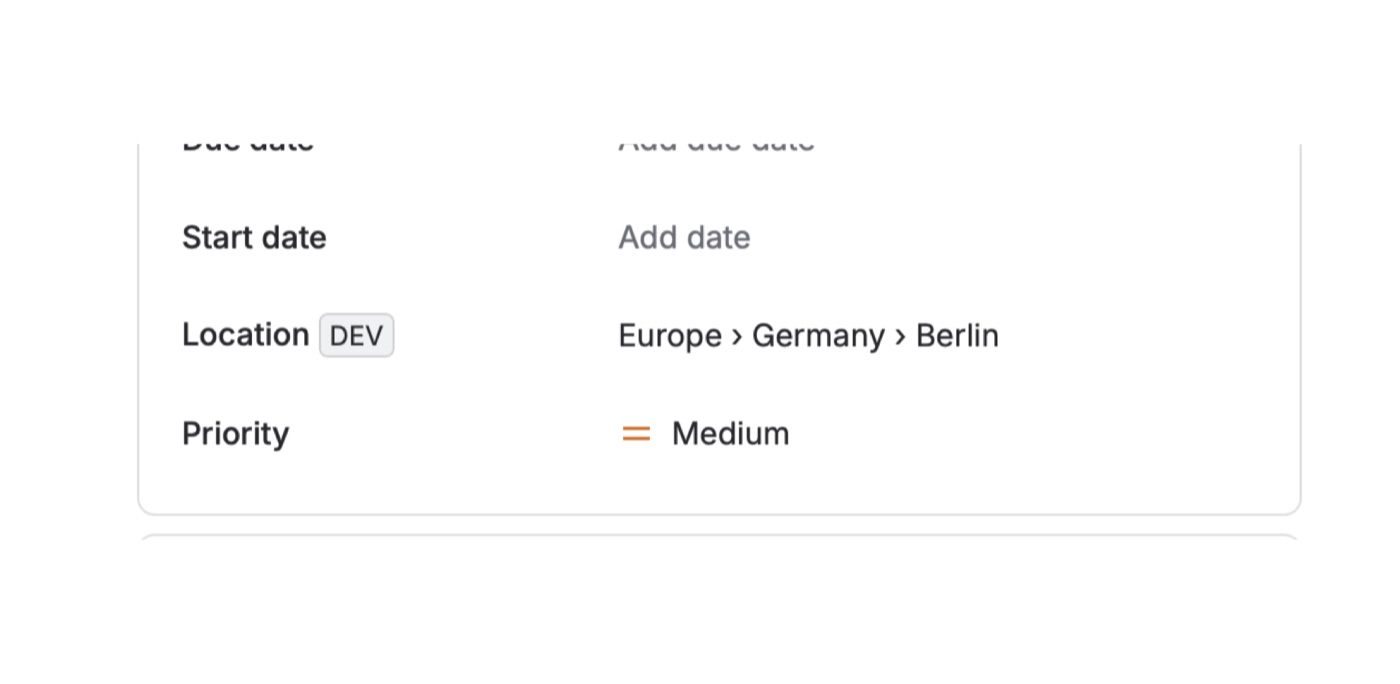
- Plain values: stored as text like
Europe › Germany › Berlin, so they show up in exports, filters and dashboards. - Create, edit and transition screens in company-managed projects.
Getting started
- Install the app from the Atlassian Marketplace.
- In Settings → Work items → Fields, create a field of type Multi-level select (Loopwise) and add it to your screens.
- Open the field's context and Edit custom field config, enter the option tree and save.
FAQ
How do I search? Use the full value, for example Location = "Europe › Germany › Berlin", or several values with in (…).
Team-managed projects? Jira supports app fields in company-managed projects.
What is stored? The option tree (the text you enter) and the chosen values. No personal data.
Questions? Contact support.