 Loopwise Labs
Confluence Cloud app · Runs on Atlassian
Page Approval for Confluence
Know which version of a page was approved, by whom and when, and see at a glance when it changed afterwards.
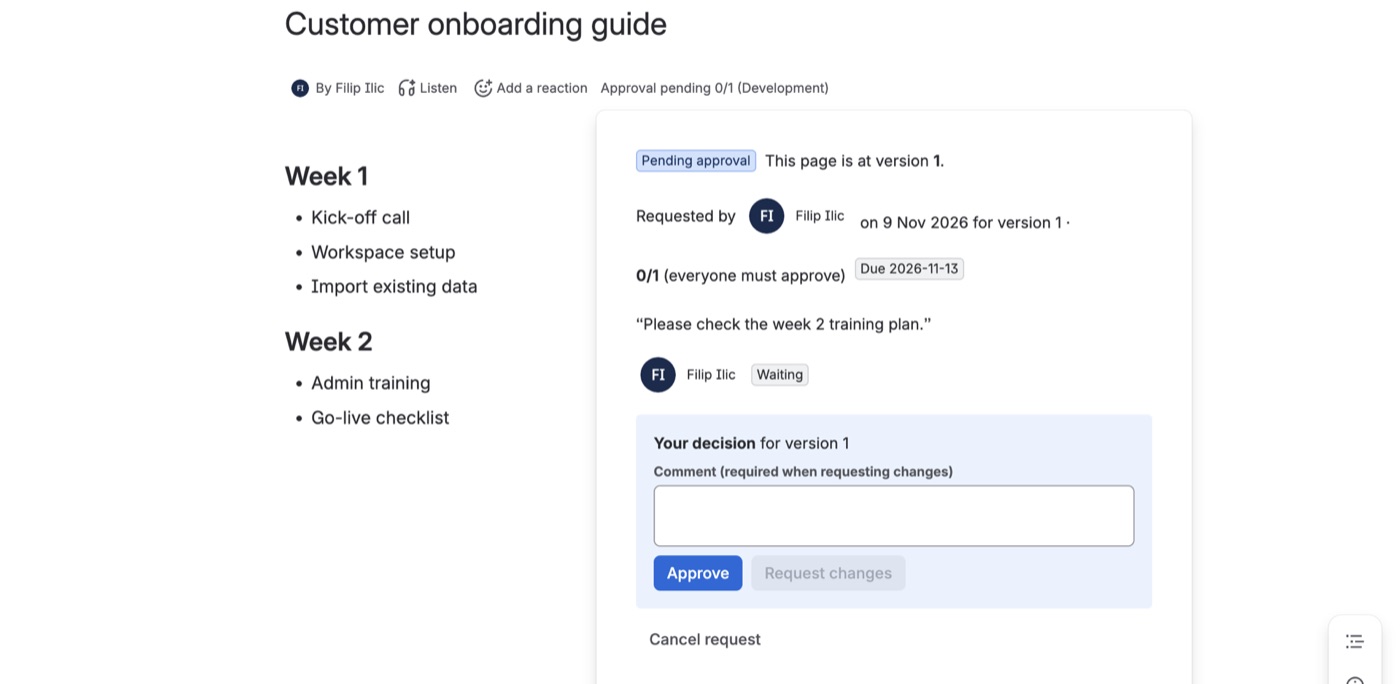
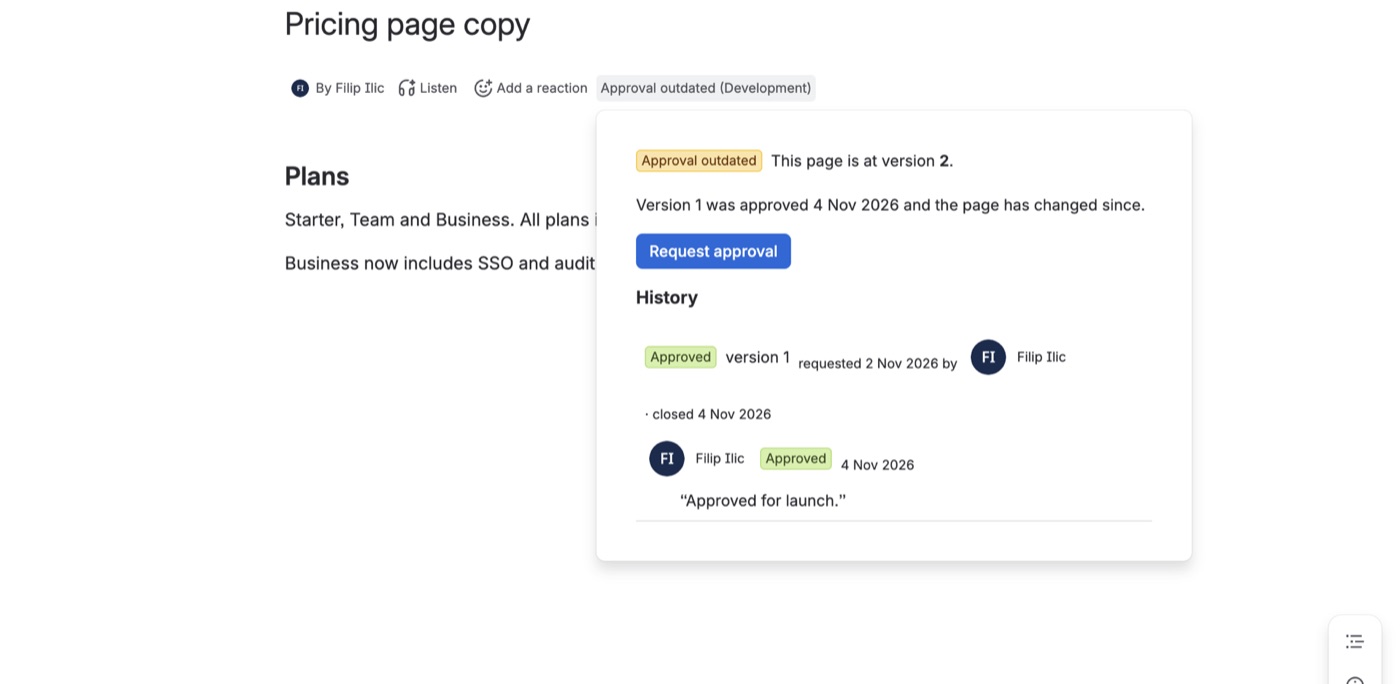
- Status next to the author: every page shows Approval pending 1/2, Approved v5, Changes requested or Approval outdated at the top.
- Approvals that expire: when an approved page gets a new version it is marked outdated. If the page changes during review, earlier decisions are reset so nobody approves text they haven't seen.
- Your rules: everyone must approve, or one approval is enough. Optional due dates with overdue markers.
- Notifications without setup: approvers are @mentioned in a page comment, so Confluence notifies them as usual.
- Audit trail: every request, decision and comment is kept with the page version it applied to.
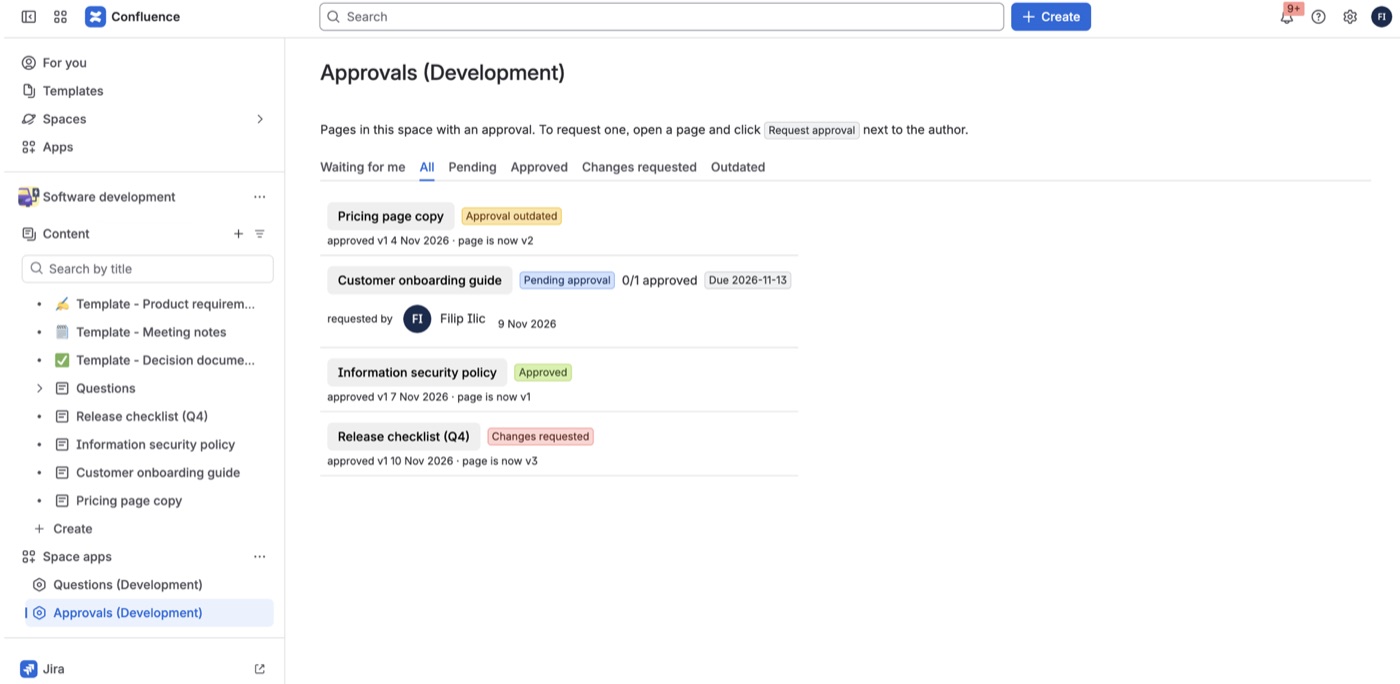
- Approvals page per space: Waiting for me, Pending, Approved, Changes requested and Outdated.
- Space defaults: default approvers, default rule and approval managers who can cancel requests.
- Native filtering: status labels such as
approval-approvedwork in Confluence search, CQL and page lists.
Getting started
- Install the app from the Atlassian Marketplace.
- Open a page and click Request approval next to the page author.
- Pick approvers and a rule, optionally a due date and a note, and send.
- Optional: space admins can set default approvers and managers under Space settings → Page Approval.
- Optional: add the Approval status macro to a page body.
FAQ
Do approvers need edit permission? No. Anyone who can view the page and is named as approver can decide.
What counts as a change? A new published version of the page. Comments, labels and the app's own updates do not count.
What happens if my subscription ends? Statuses and history stay visible. New requests and decisions pause until the license is active again.
Questions? Contact support.